


KAI: Comic Maker Manga, Manhwa
3.8465.00 Reviews
App Specs
- Version
- 1.0.11
- Updated On
- License
- Free
- Downloads
- 500,000+
- Developer
- MOBIVERSITE YAZILIM BILISIM REKLAM VE DANISMANLIK
- Categories
- Comics
- Platform
- Android
Screenshots
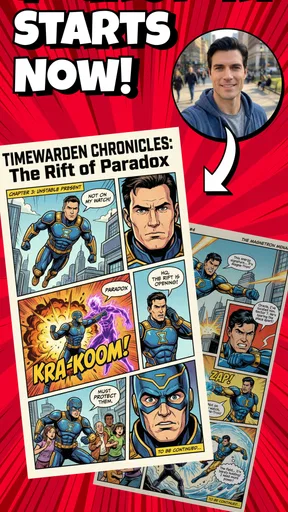
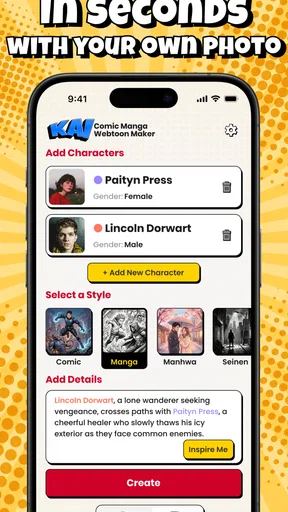

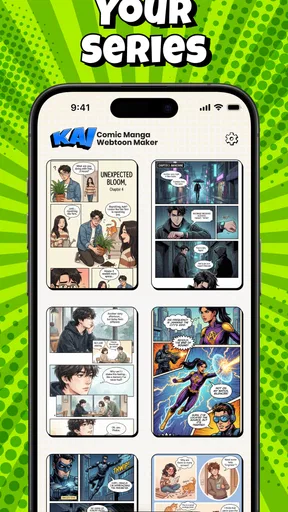
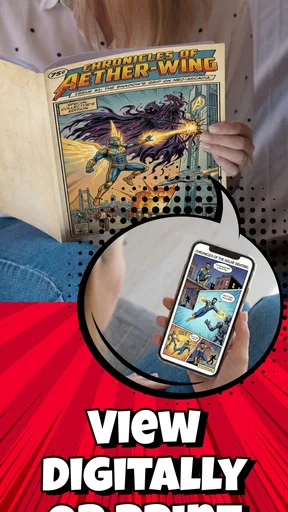

 Analysis by AppCompare
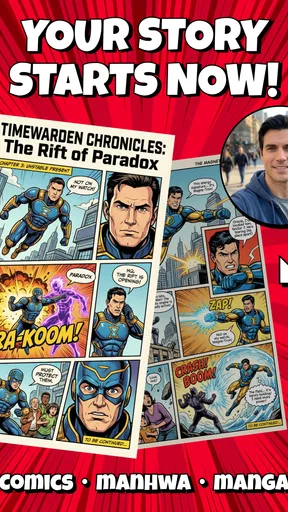
I like the idea of a comic-making app most when it helps me move from a passing character idea to a page I can actually show someone. KAI: Comic Maker Manga, Manhwa aims at that gap: it brings drawing and panel design into one mobile workspace, so I can sketch a scene, arrange it as a comic, and keep building from there. Its strongest appeal is the feeling that I can start without first learning a complicated desktop program.
Why the first few sessions feel inviting
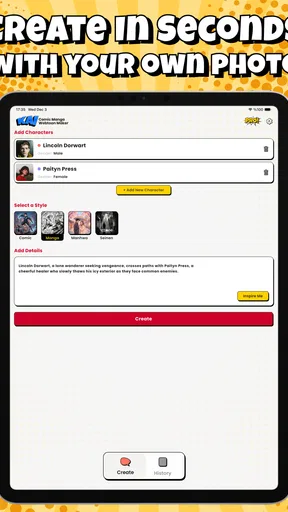
In the first week, the combination of a guided introduction, drawing tools, layers, and ready-made visual resources makes experimenting feel approachable. I can open the app with only a rough premise and still have a few ways to get moving: sketch a character, try a template, or test a panel arrangement. That flexibility is more useful than a blank canvas when I’m not yet sure what the first page should look like.
The app is a free comics tool from MOBIVERSITE YAZILIM BILISIM REKLAM VE DANISMANLIK, and its Teen content rating makes it relevant to younger aspiring creators as well as adults. It has a 4.0 average from around 25,000 ratings and over 500,000 installs, which suggests that plenty of people are willing to try it. I’d treat those figures as context, not a promise that every creator will find the same workflow comfortable.
A practical way to build a page
For a beginner, I’d keep the first project deliberately small: one character, one short exchange, and a few panels. Start with a template if the empty page feels intimidating, then adjust the panel shapes to suit the beat of the scene. I find that deciding where a pause or reaction belongs before polishing the drawing saves effort; panel layout affects the reading rhythm, not just the look of the page.
Layers are especially valuable when I want to separate rough construction from cleaner lines or keep a background from getting tangled with a character. A useful habit is to settle the broad composition first, then add details only where they help the reader understand the action. That keeps a small screen from turning into a crowded workspace and makes later edits less frustrating.
When it earns a place in a routine
The month-to-month question is whether I’ll return after the novelty of drawing on a phone fades. KAI has a plausible reason to stay installed if I’m building a personal comic in short sessions: I can make a little progress on a scene, revisit the panels, and use the asset library when I hit a blank-page moment. It suits hobbyists who want a low-pressure place to test ideas before committing them to a larger project.
It is less convincing as the center of a demanding production workflow. A phone or tablet can be handy for drafting, but long sessions, precise lettering, detailed revisions, and managing a large sequence of pages may be more comfortable in a dedicated desktop art or publishing tool. I’d use KAI for exploration and portable work, then consider another program if a project grows into something that needs extensive control or a more formal production pipeline.
Worth Reading Before You Choose

Flipboard Shows What News Apps Must Do Beyond the Feed

Switching to Android Auto Means Rethinking Your Driving Routine

Google Calendar Makes a Crowded Week Easier to Manage

Ludo King Makes the Most of the Minutes Between Plans

Baby Panda World Brings Quick Play to Modern Phones, but Its Game Library Feels Busy

ESPN’s Live Game View Makes Following Close Games Easier
What can wear thin
Creative apps can become tiring when every new project means relearning where a tool lives or deciding among too many choices. The tutorial helps with the basics, but the number of brushes, colors, assets, and layout options may still feel like a lot at first. Rather than trying everything in one sitting, I’d choose a small set of tools and make a complete test page; that gives me a clearer sense of the workflow than browsing options endlessly.
Cost is another long-term consideration. The app is free to download, with in-app purchases ranging from $3.99 to $79.99 per item. I would begin with the free experience and only pay after identifying a specific limitation that affects a project I genuinely plan to finish. That makes the decision practical instead of letting the novelty of extra options push me into spending before I know what I need.
Who should keep it—and who should move on
I’d recommend KAI to beginners, casual illustrators, and comic fans who want to turn ideas into readable pages without starting with a heavyweight art suite. It also makes sense for someone who likes the manga or manhwa format and wants to experiment with panel flow as part of drawing. If I were mainly looking for a traditional sketchbook, a general drawing app might be a better fit; if I needed meticulous page production, a more specialized desktop option would likely suit me better.
There are a few practical questions I’d ask before relying on it. Can I finish a page without paying? The free download gives me a way to begin, but I’d test the tools I actually need before planning a whole series around them. Is it suitable for a long comic? It can help me draft and arrange pages, though I’d judge its comfort by trying a short chapter first. Do I need to be an experienced artist? No: the introductory guidance and templates make it approachable, but they don’t replace practice or remove the need to make storytelling choices.
For a realistic everyday use, I’d open it during a quiet break, rough out a three-panel joke or a brief character moment, and leave the next session with a clear task—clean up the lines, revise a panel, or try a different composition. That small stopping point matters: it gives me a reason to return without turning a relaxing hobby into a daily obligation. If I’m sharing work, I’d also check an exported page at the size people will view it; details that seem clear while zoomed in can be harder to read when the page is seen as a whole.
Getting Started with KAI
The first thing that struck me about KAI: Comic Maker Manga, Manhwa is how user-friendly it is. You don’t need to be a tech wizard to get the hang of it. The interface is clean, and everything is pretty intuitive. As soon as you dive in, you’re greeted with a tutorial that guides you through the basics. It feels like the app is holding your hand, showing you around like a friendly tour guide. Kudos to the developers for making it accessible.
Features That Shine
Now, let’s talk features, because this app has quite a few that stand out. You’ve got a plethora of tools at your disposal – brushes, pens, and colors galore. It’s like having a mini art studio right in your pocket. The best part? The layer feature. If you’ve done any digital art before, you’ll know how layers can be your best friend, and KAI nails it. You can stack, move, and edit layers without a hitch.
Another highlight is the library of templates and assets. Whether you’re drawing a fierce dragon or a cute little chibi character, there’s something here for everyone. The templates are great for getting started, especially if you’re like me and occasionally suffer from creative block.
Drawing and Designing
Drawing with KAI feels surprisingly natural. The app is responsive, and there’s minimal lag, even when you’re adding intricate details. I was pleasantly surprised by how smooth the lines were, which is something I’m pretty picky about. The pressure sensitivity is decent too, giving you that real pen-on-paper feel.
Designing panels is another area where this app shines. You can easily adjust panel sizes and shapes, so your comic can have a unique flow. It’s almost like playing a puzzle game, fitting together pieces to create a complete picture. The freedom to experiment with panel layouts is a big plus in my book.
Sharing Your Masterpiece
Once you’ve crafted your masterpiece, sharing it is a breeze. The app offers multiple export options, so you can share your work with friends, or post it online for the world to see. The quality of the exports is top-notch, keeping all your colors and details intact. Plus, there’s a community section where you can check out other creators’ work and maybe find some inspiration.
Room for Improvement
Of course, no app is perfect, and KAI is no exception. While it’s packed with features, I did notice that it can be a little overwhelming if you’re new to comic creation. The plethora of options might leave some users scratching their heads. A more detailed help section could be beneficial.
Also, while the app is free to download, some advanced features are locked behind a paywall. It’s not a deal-breaker, but it’s something to keep in mind if you’re on a budget. That said, the free version is still very robust and offers more than enough to get started.
Final Thoughts
All in all, KAI: Comic Maker Manga, Manhwa is a fantastic tool for anyone looking to create comics on the go. It’s packed with features that cater to both beginners and seasoned artists alike. While there’s a slight learning curve, the payoff is a powerful app that lets your creativity run wild. Whether you’re into manga, manhwa, or just doodling, this app is likely to become your new best friend.
So, if you’re itching to create the next big thing in the comic world, give KAI a whirl. You might just surprise yourself with what you can create.
Keeping the habit sustainable
Long-term value depends less on how many tools I can browse and more on whether I can return to an unfinished idea without friction. I’d keep a simple project routine: one session for rough thumbnails, another for drawing, and a final pass focused on whether the panels read clearly. This division helps me avoid treating every visit as a fresh start, while making progress visible even when I only have a short stretch of free time.
A small practical safeguard is to decide what “done for today” means before I begin. It might be completing the rough layout rather than finishing the whole page. That boundary makes a mobile creative session easier to fit around work or school, and it reduces the temptation to keep tweaking a drawing that already communicates the moment. For a continuing story, I’d also keep brief notes outside the artwork about character details or plot beats, so the next session starts with a direction instead of guesswork.
Choosing the right tool for the job
Compared with a general drawing app, KAI’s comic-oriented panel controls and templates put more emphasis on arranging a page as a sequence. That can help when I’m learning how visual storytelling works, because I have to think about what each frame contributes rather than making a standalone illustration. The trade-off is that a broad illustration app may offer a more familiar workspace for someone who mostly paints portraits or makes finished single images.
Compared with desktop comic software, a phone-based workflow is easier to pick up for a quick idea but can feel cramped when I need to inspect fine details or revise many pages in a row. I’d see KAI as a useful sketch-and-layout companion rather than automatically replacing every tool in a creator’s process. Someone preparing a polished, lengthy release should test a representative page and a short sequence first, then decide whether the controls and export workflow remain comfortable at that scale.
Checking the fit before committing
The current version is 1.0.9, and it runs on Android 7.0 or later. Those details make it worth checking compatibility before installing on an older device, especially if I’m planning to use it regularly rather than just try a quick sketch. I’d also keep expectations grounded: an app can make drawing and page assembly accessible, but it cannot decide which scene deserves a close-up or whether a reader can follow the action. The storytelling work still belongs to me.
One useful test is to create a page with a background, a character, and a short exchange, then export it and look at it away from the editing screen. That reveals whether the panel order, contrast, and small details hold up together. If the result feels readable and the process is enjoyable, that is a better reason to keep the app than simply collecting templates or brushes I may never use.
Does it last beyond the novelty?
My lasting impression is that KAI has the best chance of earning space on a device when I treat it as a convenient place to develop comic ideas, not as a promise that every project will become a finished series. Its guided start, drawing tools, layers, templates, adjustable panels, and ways to share work give beginners several routes from a loose thought to a page. The main friction is choice overload and the possibility that a more ambitious workflow will outgrow a mobile-first setup.
I’d keep it if I enjoyed returning to a small story and could make steady progress without feeling pushed to buy extras or turn a hobby into a chore. I’d move on if I mainly wanted unrestricted illustration, needed a larger production workspace, or found the number of options distracting rather than encouraging. For someone curious about making manga-style or manhwa-inspired comics, it is a sensible app to try; the best test is whether I still want to open it after the first few experiments are over.
Pros
- User-friendly interface for easy navigation.
- Extensive library of comic templates.
- High-quality export options for sharing.
- Customizable character and scene elements.
- Regular updates with new features.
Cons
- Limited free content availability.
- In-app purchases can be pricey.
- Occasional lag with large projects.
- Requires internet for template access.
- No offline mode for editing.
FAQs for KAI: Comic Maker Manga, Manhwa
What is KAI: Comic Maker Manga, Manhwa used for?
KAI: Comic Maker Manga, Manhwa is an innovative app designed for creating and editing comics, particularly in the manga and manhwa styles. It offers a wide range of tools and features to help users design characters, backgrounds, and storylines. Whether you're a seasoned artist or a beginner, this app provides a user-friendly platform to express your creativity and bring your comic ideas to life.
Is KAI: Comic Maker Manga, Manhwa suitable for beginners?
Yes, KAI: Comic Maker Manga, Manhwa is suitable for both beginners and experienced artists. The app includes tutorials and guides to help newcomers understand the basics of comic creation. With its intuitive interface and a variety of templates, even those new to comic making can quickly start creating their own stories with ease.
What features does KAI: Comic Maker Manga, Manhwa offer?
KAI: Comic Maker Manga, Manhwa offers a comprehensive set of features including customizable templates, a vast library of characters and backgrounds, and advanced drawing tools. Users can also add text with different fonts, use layers for complex designs, and export their work in various formats. These features make it a versatile tool for creating detailed and professional-looking comics.
Can I share my creations made in KAI: Comic Maker Manga, Manhwa?
Yes, the app allows users to easily share their creations across various platforms. You can export your comics in multiple formats and share them on social media or with friends and family. Additionally, the app may support community sharing features where you can showcase your work and get feedback from other users.
Is KAI: Comic Maker Manga, Manhwa free to use?
KAI: Comic Maker Manga, Manhwa offers a free version with basic features, but there are also in-app purchases available for advanced tools and additional content. Users can choose to upgrade to a premium version to unlock more features and resources, which can enhance their comic creation experience.


